
Starter
3credits
$7.99
$2.66 each
3 downloads of any size. Good for a one-off project.
Convert an STL (.stl) mesh to a STEP (.step or .stp) file for CAD import, supplier handoff and manufacturing review. Marathon OS preserves the visible mesh geometry in a STEP-compatible representation, but it does not recreate the original sketches, dimensions, constraints or feature history.
Choose one STL file. This page is already configured to create a STEP or STP output.
Drag and drop your STL file here
or choose a file from your computer
Browse filesMaximum file size: 300 MB
Files under 5 MB convert and download free. Larger files use one credit for one completed download, regardless of file size.
Pricing
Files under 5 MB convert and download free. Larger files use one credit for one completed download, regardless of file size. 1 credit downloads any file, any size, and credits never expire.
Starter
3credits
$7.99
$2.66 each
3 downloads of any size. Good for a one-off project.
Pro
5credits
$12.99
$2.60 each
5 downloads of any size. The everyday choice.
Team
10credits
$19.99
$2.00 each
10 downloads of any size. Best balance of price and volume.
Studio
15credits
$26.99
$1.80 each
15 downloads of any size. Lowest price per file.
Run the conversion in your browser workflow without installing a CAD application or plugin.
The STEP result is derived from the triangles in the STL. It is not presented as a recovered parametric model.
Open the converted file in a compatible STEP viewer or CAD application to check scale, faces and body status.
Open STEP viewerConversion files stay private, are not added to the public CAD library and are automatically deleted within 7 days.
Continue your CAD workflow
Use the STL viewer before conversion, the STEP viewer after conversion, or a CAD designer when the job requires editable features rather than a format change.
Simple conversion workflow
Move from a triangle mesh to a STEP-compatible result in three steps.
Choose a .stl file up to 300 MB. A watertight, consistently oriented mesh has the best chance of producing a usable result.
The route is preconfigured for STEP output. Start the conversion without searching through a list of destination formats.
Open the .step or .stp result in the application used for the next workflow. Check units, geometry, open edges and whether the result is a surface or solid body.
Format behaviour
STL stores a model as triangles. STEP can represent boundary-representation geometry, surfaces, solids, assemblies and product data. During conversion, the STL triangles are translated or wrapped into a STEP-compatible representation. Depending on the mesh and conversion engine, the result may be faceted surfaces, a sewn shell or a solid body. The process cannot infer the original design intent or native feature tree.
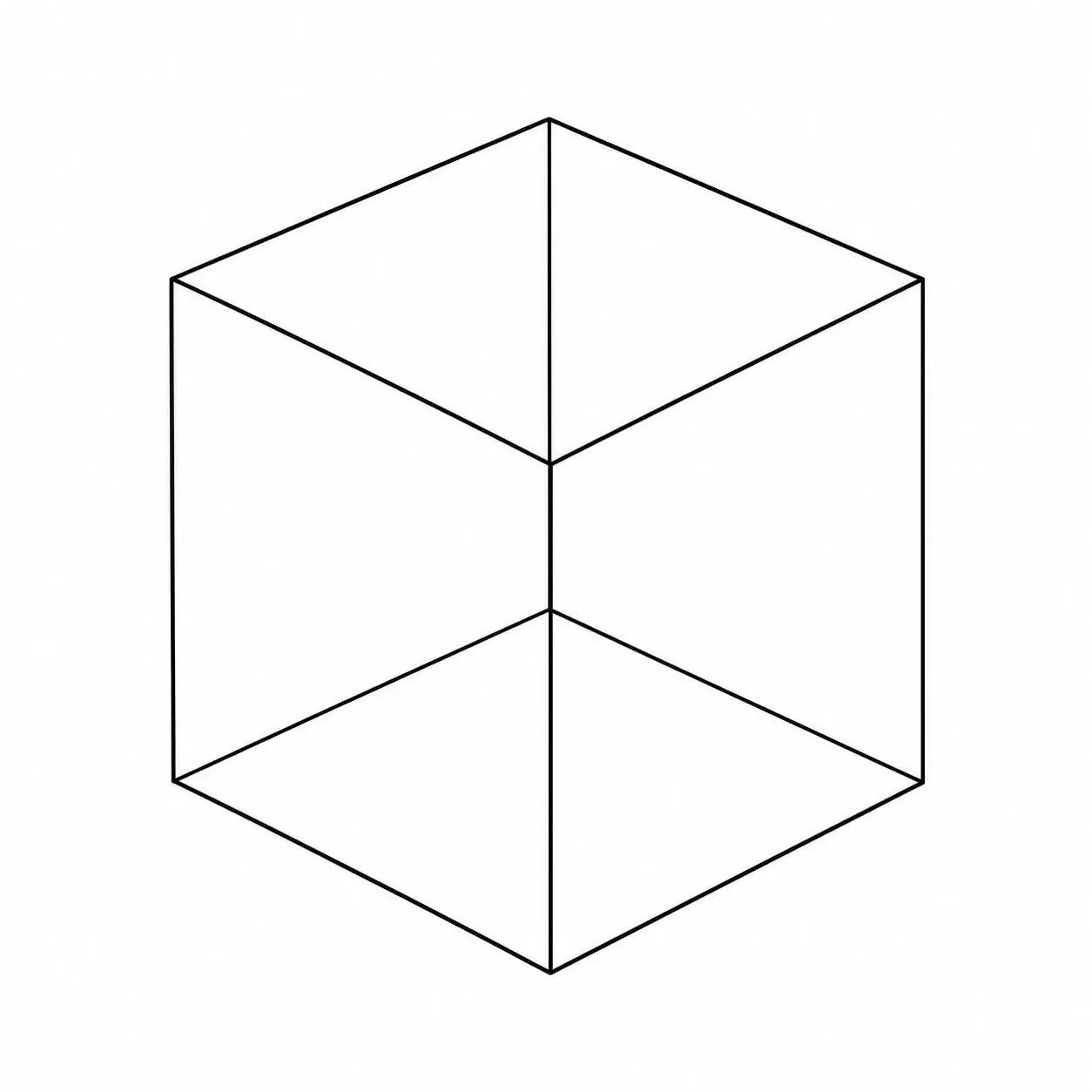 STL meshSTL
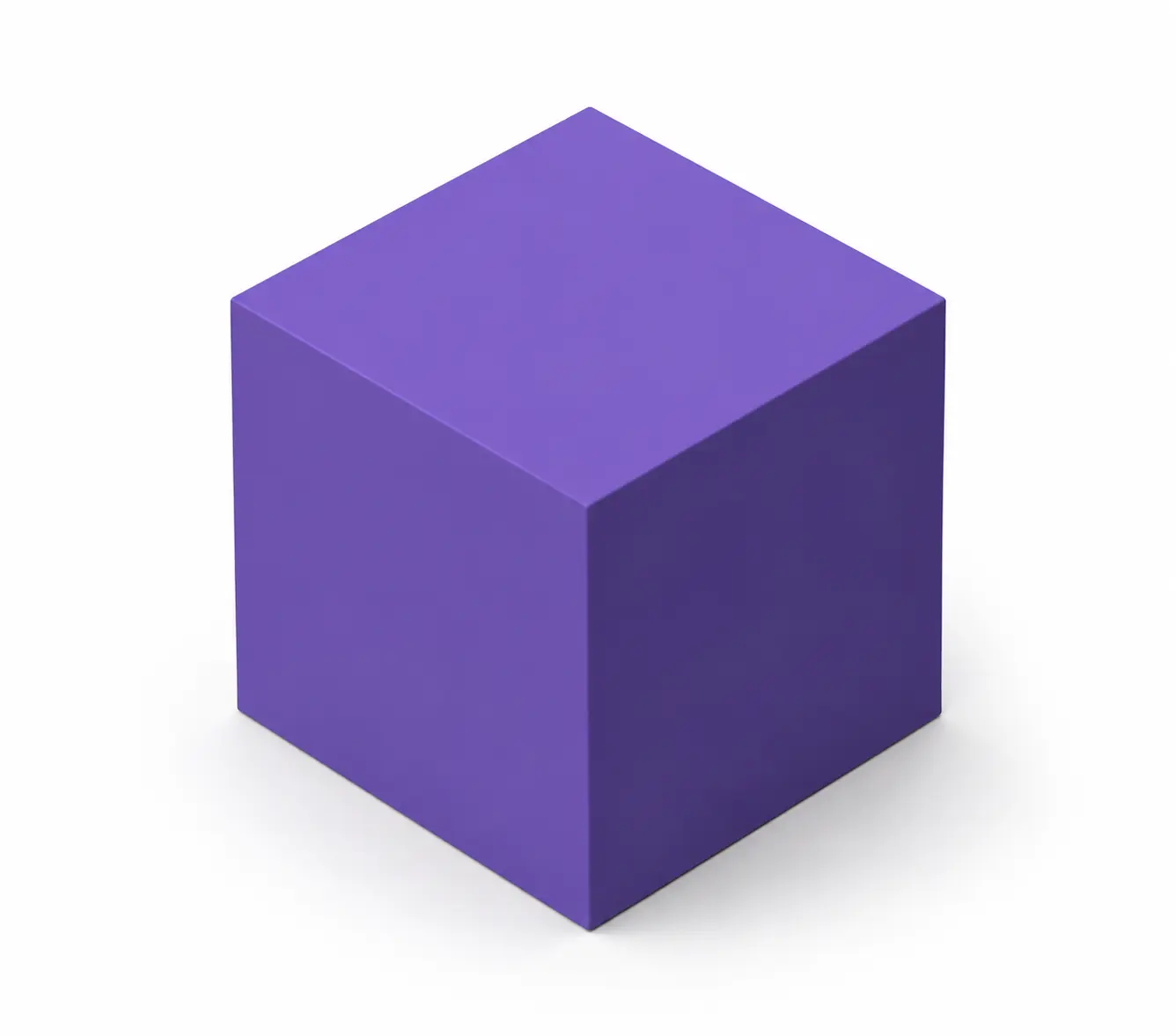 STEP modelSTEP
Format comparison
Choose the file according to what the next application needs—not because one format is universally better.
| Feature | STL STL | STEP STEP |
|---|---|---|
| Data model | Triangular surface mesh | Boundary-representation geometry, surfaces, solids and product structure |
| Editability | Mesh editing; no feature history | Can be used in CAD workflows, but a mesh-derived STEP is not automatically parametric |
| Units | No standard unit field | Supports explicit unit information |
| Best use | Slicing, 3D printing and mesh workflows | CAD exchange, supplier handoff, inspection and downstream engineering tools |
| File extensions | .stl | .step, .stp |
A supplier or CAD application specifically requires .step or .stp
You need a CAD-exchange container rather than a slicer-ready mesh
You need to inspect the mesh-derived result in a STEP-compatible tool
You understand that native features will not be restored
The next step is slicing or 3D printing
You are still repairing, decimating or editing the mesh
You need to preserve the original triangle structure
A STEP-compatible output provides no practical advantage for the next tool
Before continuing
A successful download only confirms that a file was produced. Verify the engineering result before quoting, manufacturing or modifying the model.
STL has no standard unit field. Confirm whether the source was intended as millimetres, inches or another scale, then measure a known feature in the STEP result.
Check whether the receiving application reports a solid, closed shell, open shell or collection of surfaces.
Look for missing triangles, gaps, self-intersections, sliver faces and non-manifold areas inherited from the STL.
Confirm that face normals and shell orientation display correctly in the receiving application.
A very dense STL may create a large, slow STEP file with thousands of small faces. Confirm that it remains usable in the target application.
Test the converted file in the exact CAD, CAM, viewer or supplier workflow for which it was created.
Common problems
Most failures are caused by invalid source meshes, missing unit context or expectations that format conversion will reconstruct a native CAD model.
Cause: The source consists of triangles, so the converted STEP may retain a face for each triangle.
Fix: Reduce unnecessary mesh density before conversion, or request a native reverse-engineered model when smooth analytic surfaces are required.Cause: STL does not define a standard unit.
Fix: Confirm the intended source unit and apply the correct scale in the receiving application.Cause: The STL may contain holes, non-manifold edges, self-intersections or disconnected shells.
Fix: Repair and close the mesh, then convert it again.Cause: Inconsistent normals or invalid triangles can survive the conversion.
Fix: Recalculate normals and repair the affected faces in a mesh editor before retrying.Cause: A high triangle count can produce thousands of B-rep faces.
Fix: Create a copy of the STL and decimate only non-critical detail before conversion.Cause: Changing the container does not recreate editable sketches and features.
Fix: Use the STEP for exchange or inspection. Request a native CAD rebuild for design changes.Secure processing
Engineering files can contain confidential product geometry. Marathon OS keeps conversion uploads separate from the public CAD library and explains how each file is handled.
Files are transferred over an encrypted connection.
Uploaded source files and converted outputs are automatically deleted within 7 days.
Uploading or converting a file does not transfer ownership of the design to Marathon OS.
Conversion files are not listed in the public Marathon OS CAD library.
Explore a small set of related CAD and mesh handoffs.
CAD to 3D-printing mesh
Legacy surfaces to modern CAD exchange
Mesh handoff for slicing
Rhino to CAD/CAM exchange
Drawing exchange
Native drawing workflow
Marathon OS Design Hub
Search the Marathon OS library for a usable starting model. Review dimensions, licensing and manufacturing suitability before using any downloaded file.

Frequently asked questions
Clear answers about output quality, editability, pricing, file limits and privacy.
Upload the .stl file, confirm STEP as the preselected output, start the conversion and download the resulting .step or .stp file. Open the result in the application used for the next workflow and verify its scale and geometry.
No. The STEP result is based on the triangles in the STL. It does not recreate the original sketches, constraints, dimensions or feature tree. A CAD designer must rebuild those features when a clean native model is required.
It depends on the quality and topology of the source mesh and the conversion result. A watertight, manifold STL may produce a closed shell or solid, while a damaged or open mesh may remain surfaces. Always check the body status after conversion.
STL does not define a standard unit. The source may have been authored in millimetres, inches or another scale. Measure a known feature and apply the intended unit in the receiving application.
Files under 5 MB can be converted and downloaded free. Larger files use one credit for one completed download.
You can upload an STL file up to 300 MB. Very dense meshes may still create large STEP outputs and take longer to process or open.
Files are transferred securely, are not published to the public CAD library and are automatically deleted within 7 days. You retain ownership of the uploaded design.