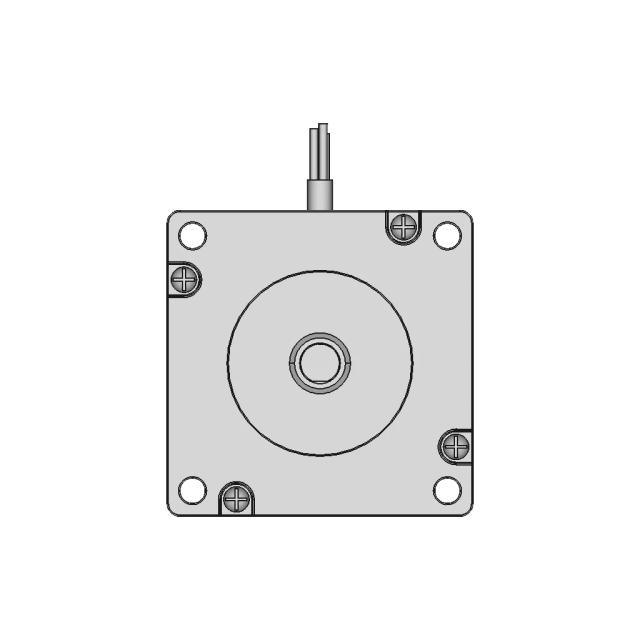
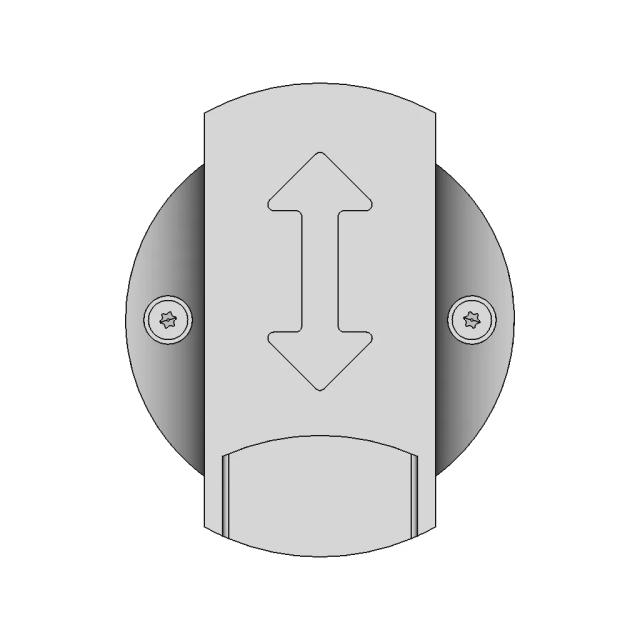
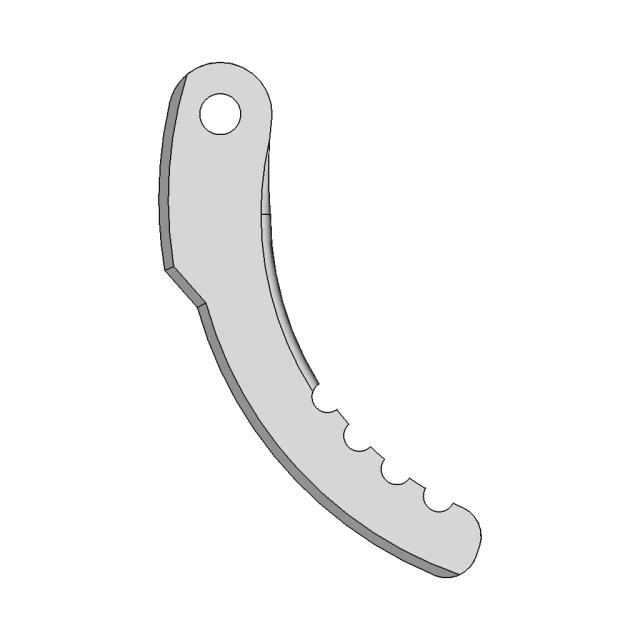
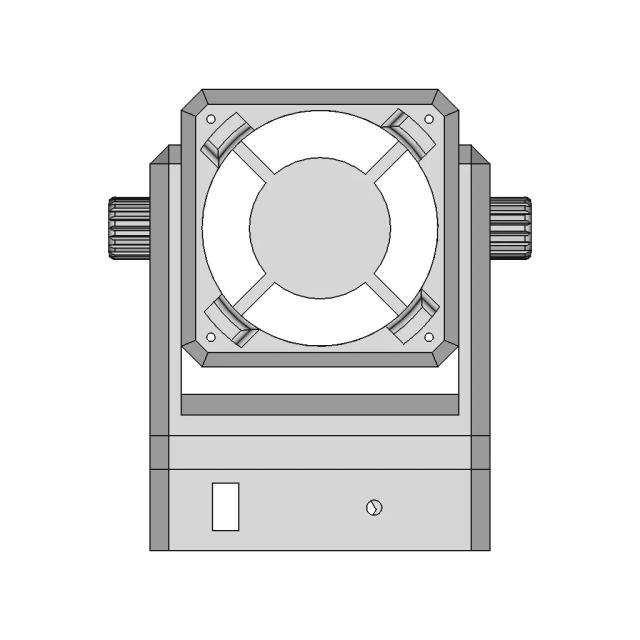
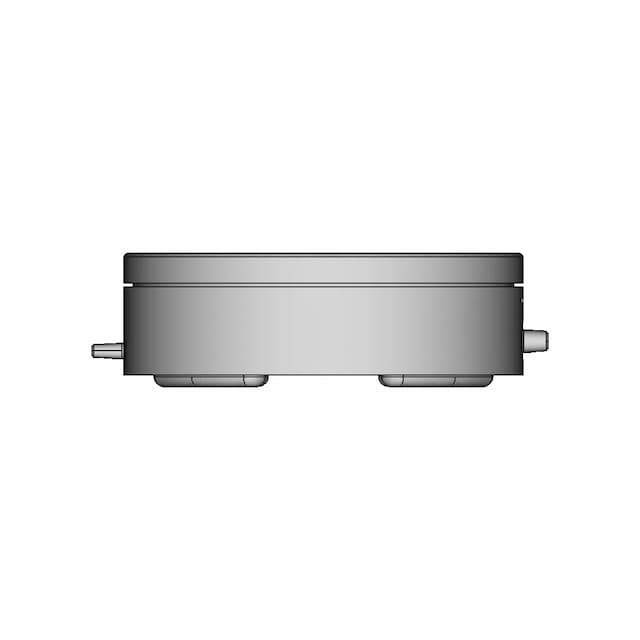
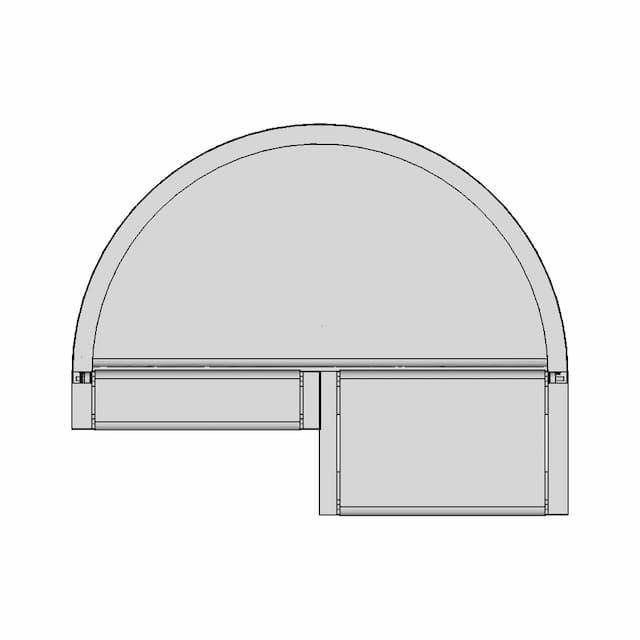
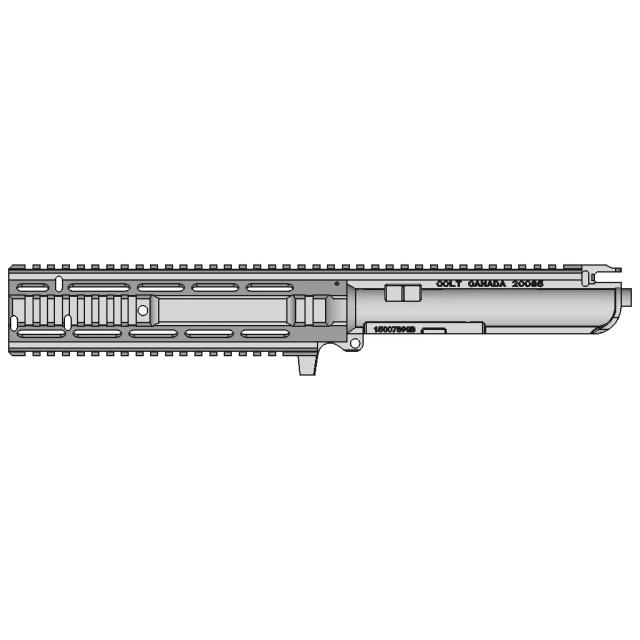
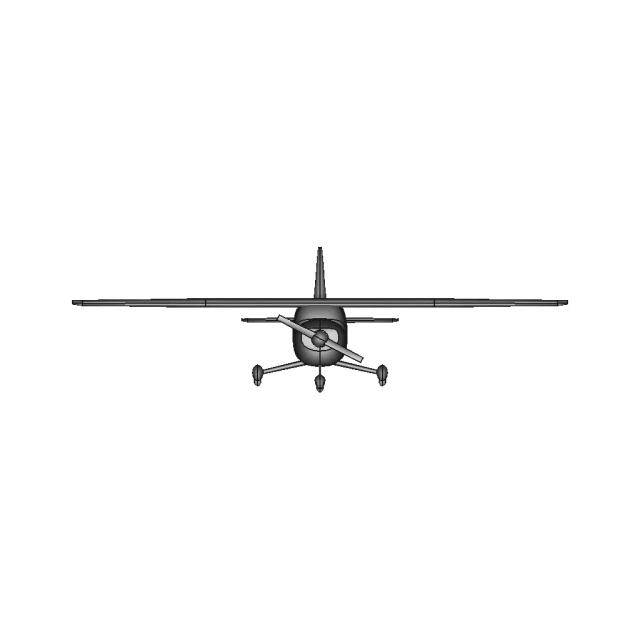
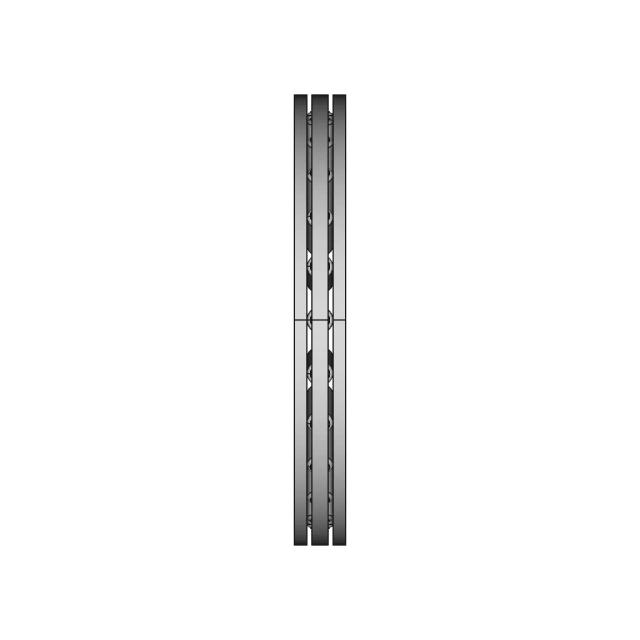
Sheet 1
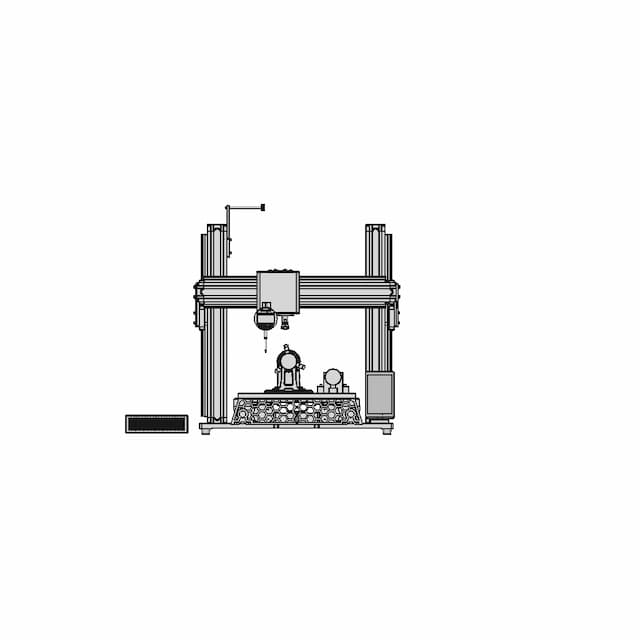
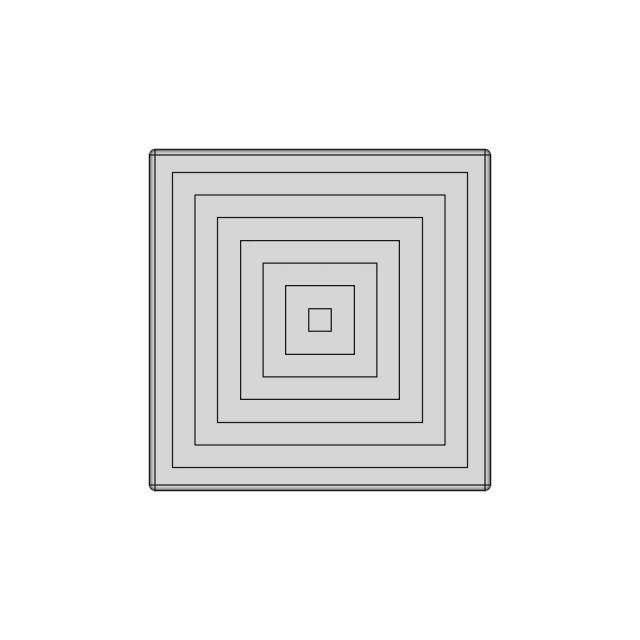
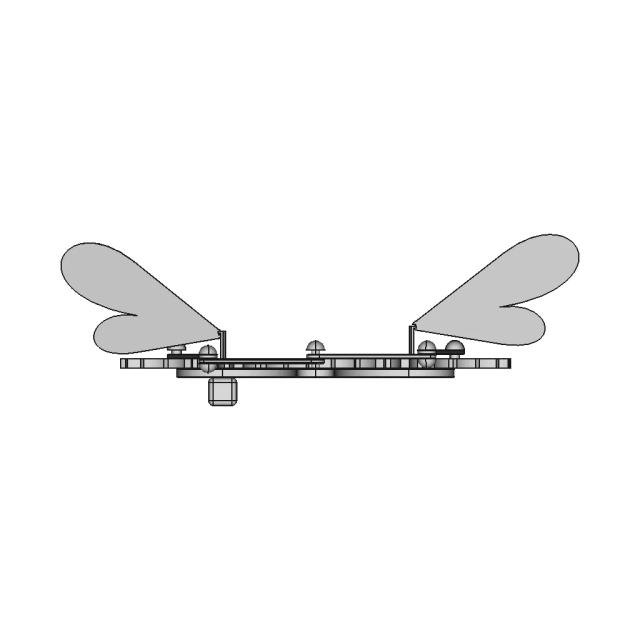
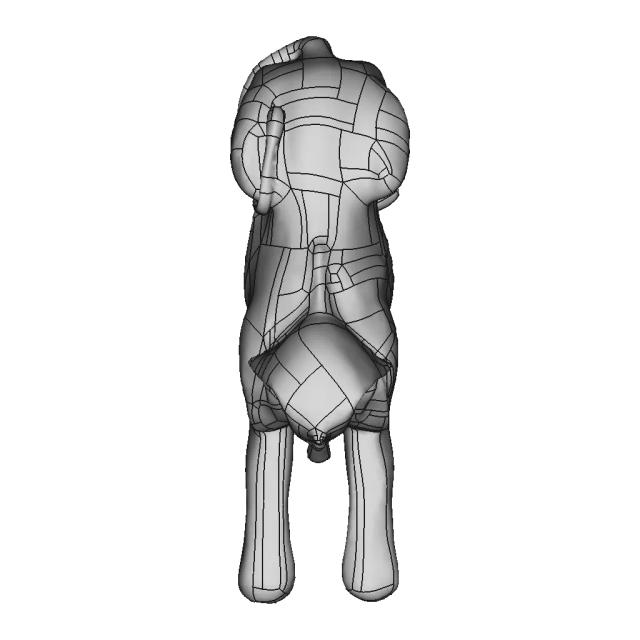
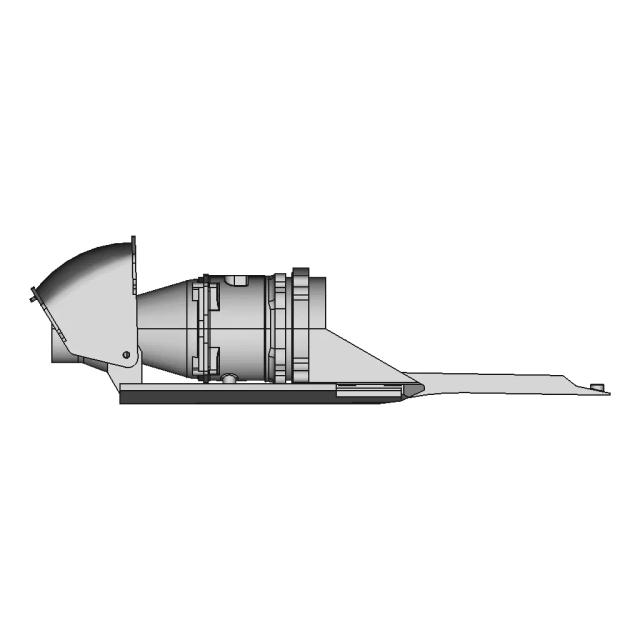
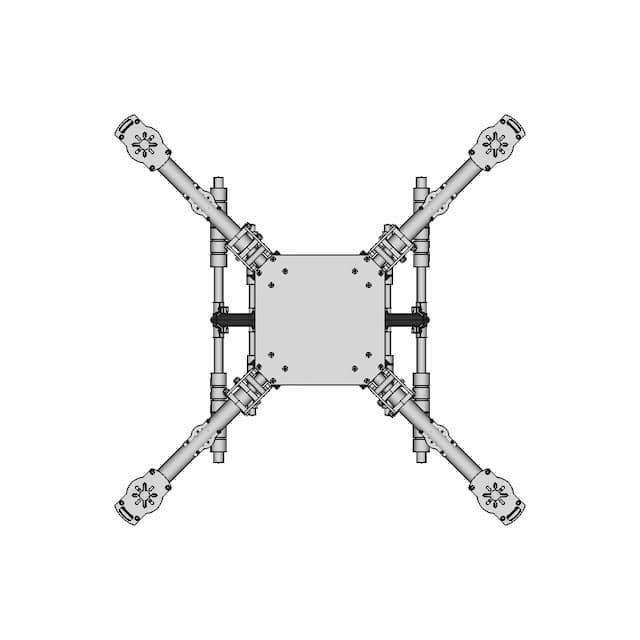
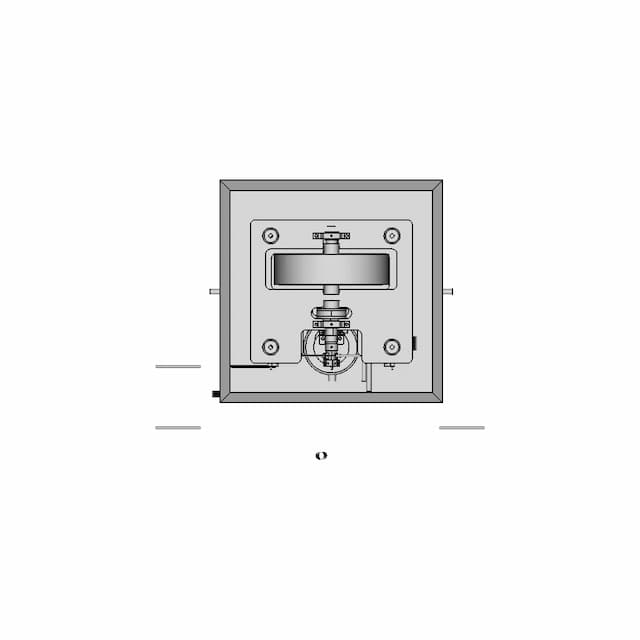
OrthographicThis sheet includes 27 geometry edges from the CAD projection pipeline.
AI Drawing Analysis
The cards below explain how the generated drawing outputs and assets connect to the final technical sheets.
This sheet includes 27 geometry edges from the CAD projection pipeline.
Downloads
Each sheet available in PDF, SVG, and DXF. Click a format badge to download.
Drawing report
Cover summary and review report for this versioned drawing set.
Flag of Ukraine
| Sheet | View | Scale | Content |
|---|---|---|---|
| 1 | Assembly - Top View | 0.42 | standard_view |
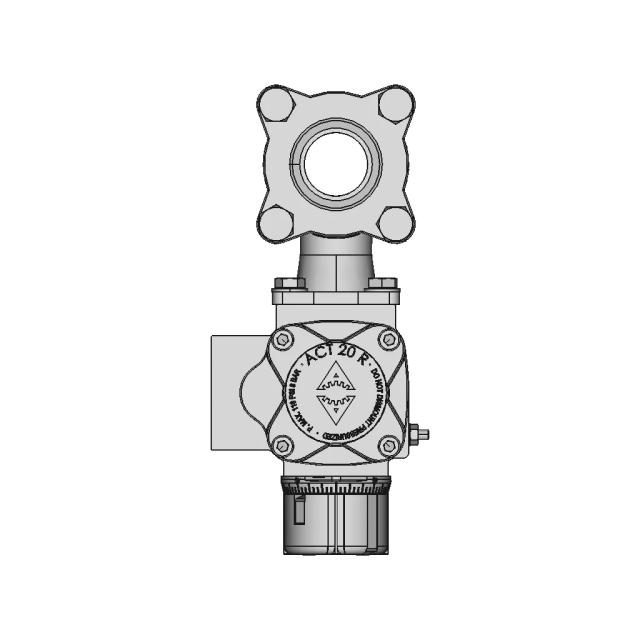
| 2 | Assembly - Isometric View | 0.25 | standard_view |
Generated automatically and intended for review before use. A companion review report lists what needs checking.
This drawing is generated automatically and is a first draft. The items below need a human decision.
All 8 dimension(s) drawn.
| # | Sheet | Type | Value | Description |
|---|---|---|---|---|
| 1 | 1 | DistanceX | 2101.3 | overall width 2101.3mm |
| 2 | 1 | DistanceY | 1400.9 | overall height 1400.9mm |
| 3 | 1 | Radius | 135.1 | 4x R135.1mm |
| 4 | 1 | Radius | 158.1 | 2x R158.1mm |
| 5 | 1 | Radius | 165.1 | 4x R165.1mm |
| 6 | 1 | Radius | 188.1 | 2x R188.1mm |
| 7 | 1 | Radius | 312.2 | 3x R312.2mm |
| 8 | 1 | Radius | 342.2 | 2x R342.2mm |
Nothing to review: no dimensions were dropped and no control frames rest on an assumption.
AI Transparency
These drawings were generated from the source 3D CAD geometry. The system analysed the model, selected relevant views, planned section cuts and generated drawing sheets in PDF, SVG and DXF formats.
These are 2D engineering drawings, not 3D files. Dimensions are extracted from the 3D geometry and should be verified against the source model before use in manufacturing.
Run Metadata
Explore Marathon OS
Jump to the source 3D model, generate your own drawings, or browse tools and libraries.
Open the original 3D CAD model used to generate this 2D drawing set. Review the source geometry before downloading or using the technical drawings.
Open 3D CAD model →Everything you need to design faster, smarter, and with more impact.
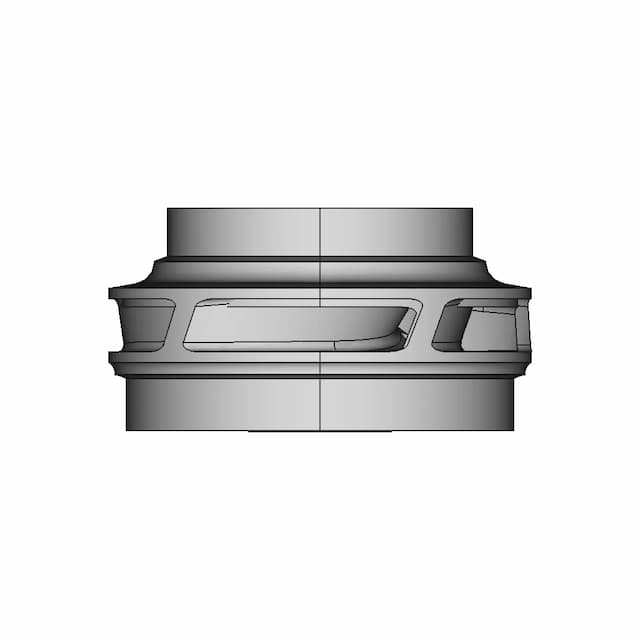
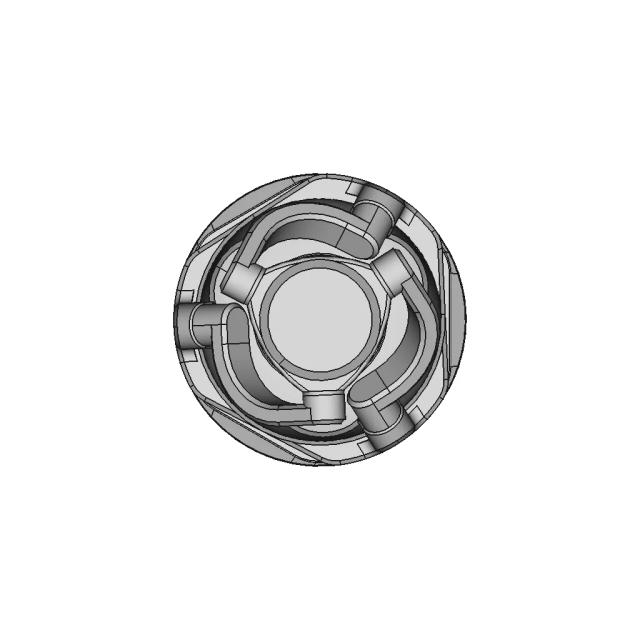
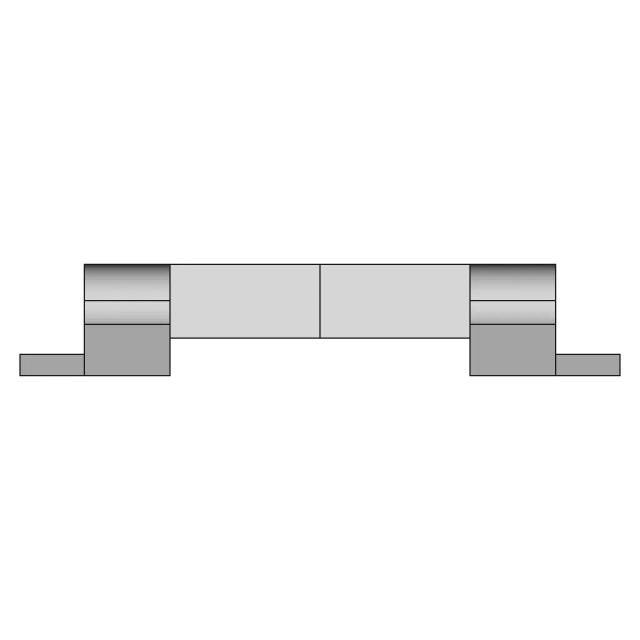
Everything you need to design faster, smarter, and with more impact.